
Our calendar can be added to your existing calendars on your phone or computer! The best part is new events will automatically be added to your schedule so you never miss a key event or double book your day.
With a few clicks, you will always have school and parish events at your fingertips whenever you want.
Step One
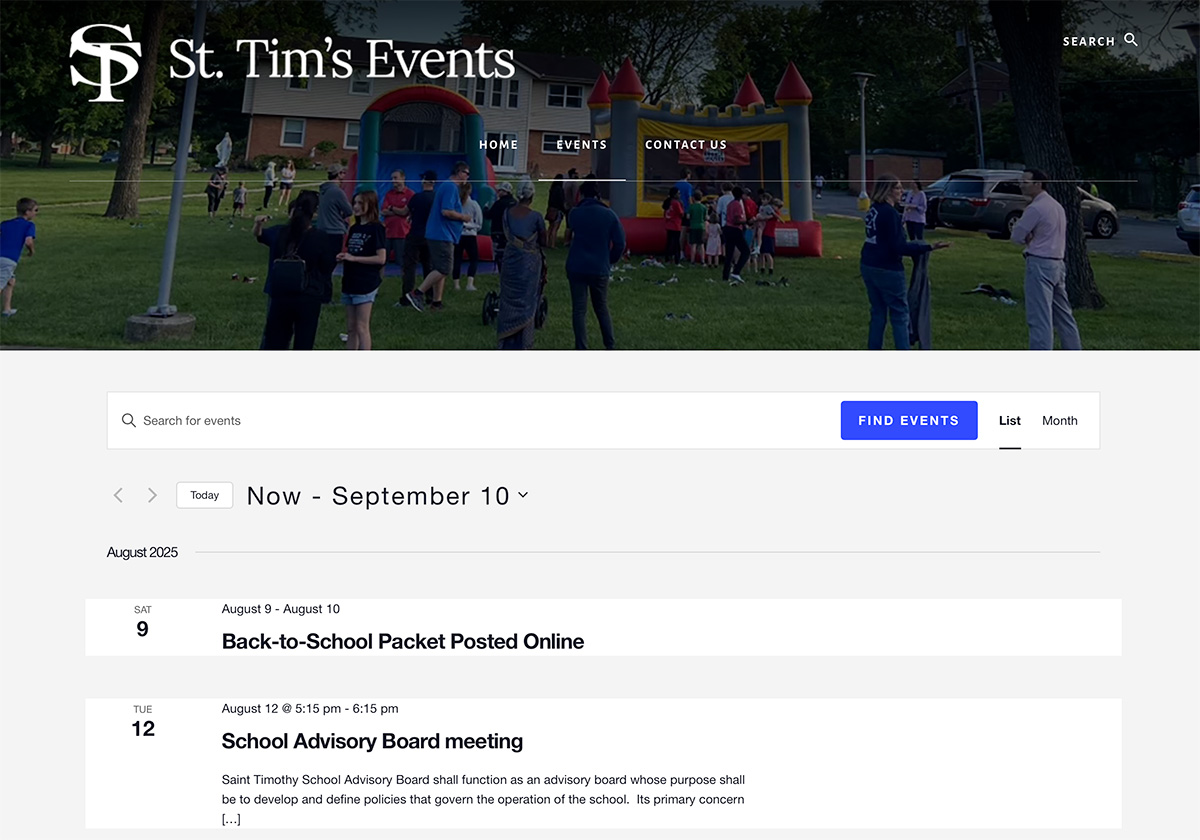
Navigate to the Events Page – https://sttimsevents.com/events/
Step Two
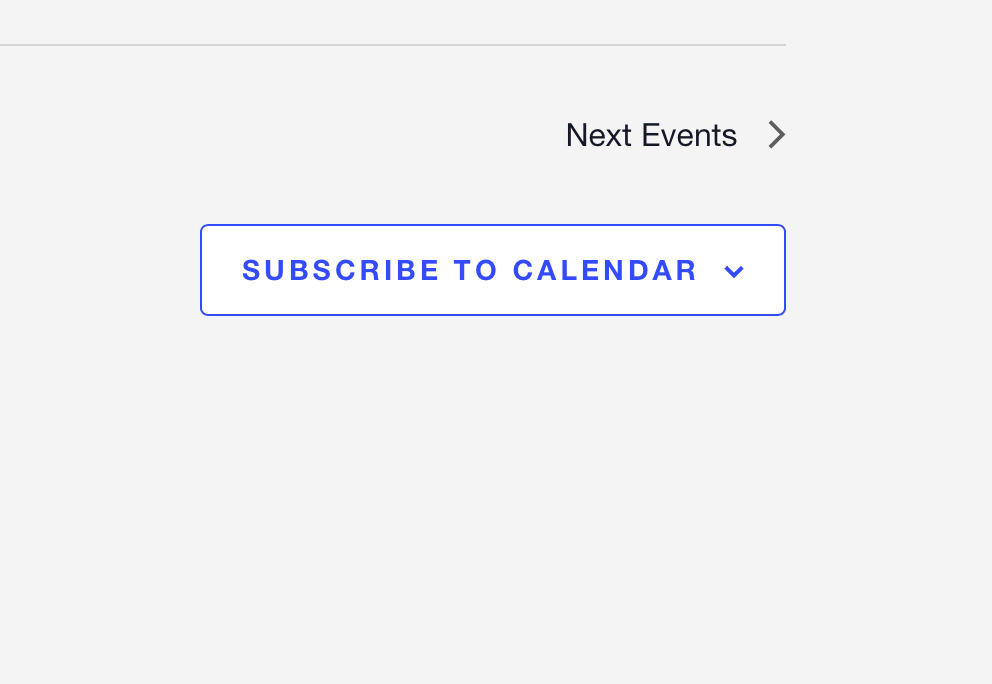
Scroll to the bottom of the page, after the events listing you will see a button that says “SUBSCRIBE TO CALENDAR:”
Step Three – Choose which Calendar you want to add St. Tim’s Events to
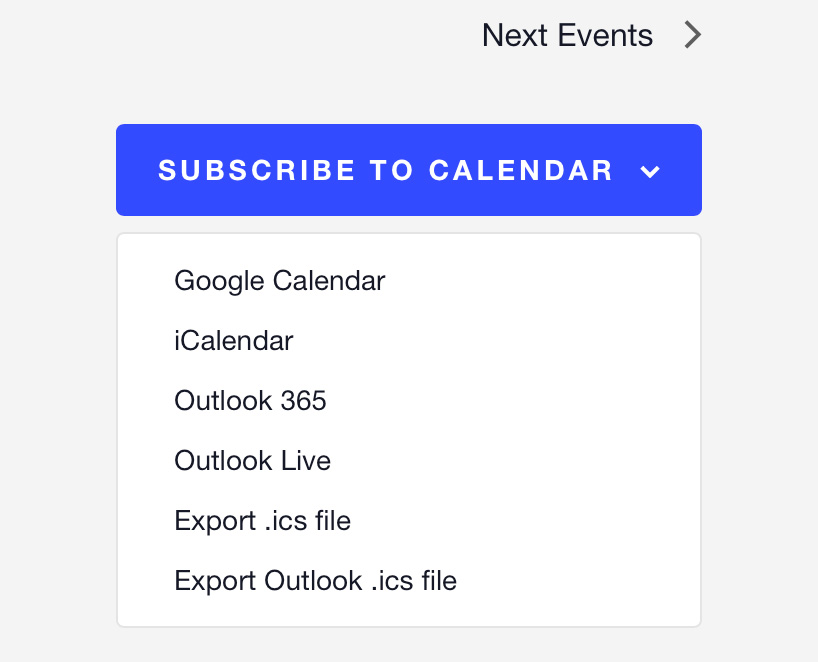
When you click the button, you will have options of which of your calendars you would like to add this calendar to:
Google Calendar
If you choose “Google Calendar,” a new tab will open up to your personal calendar. Whichever Google Account you are signed into when you subscribe is where the calendar will appear, so be sure you are logged in with the account you prefer.

Default Calendar App
If you click iCalendar and your default program supports iCal, it will be added to a calendar of your choice:

There are other options, including to add to Outlook Live, or Office 365 both of which open up Microsoft Calendars.
Export .ics File
If you don’t want to subscribe to the calendar, you also have the option to export an .ics file and import that into your favorite calendar app.
Questions?
Why does my calendar stops loading events After X Months?
Some platforms have restrictions on displaying future events. For instance, both Outlook and Google Calendar impose limitations when subscribing to an iCalendar feed, typically syncing events only up to 6 months ahead. This restriction helps reduce data load and ensures efficient syncing. Unfortunately, this is not something we can change on our end.
Over time, new events will continue to load and update your calendar, ensuring you always have a rolling 6-month view of events.